Operating Guide
fjord organizes container infrastructure operations into five primary functional areas: App Store, Stacks, Volumes, System, and Settings.
1. Deploying Stacks via the App Store
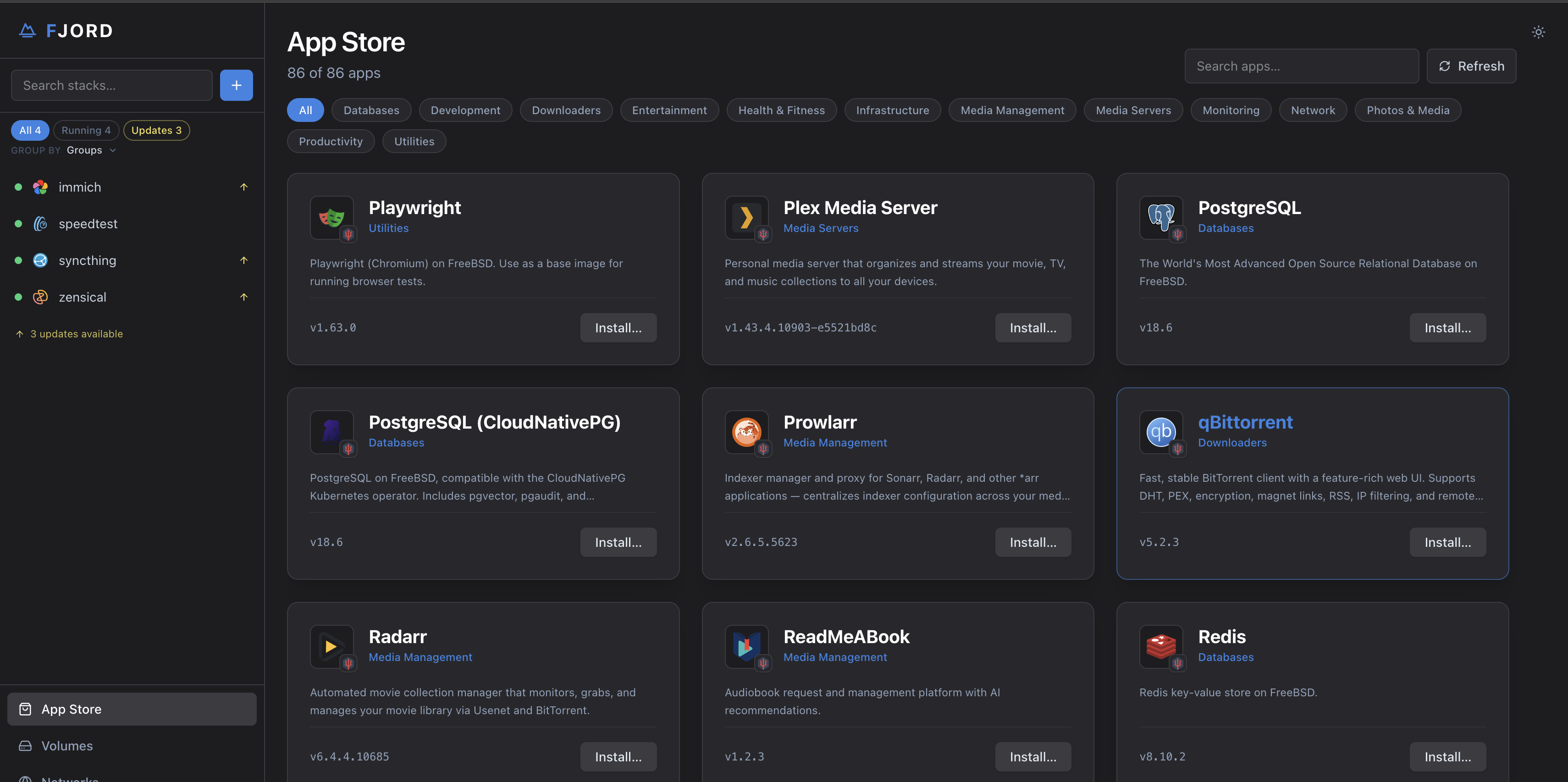
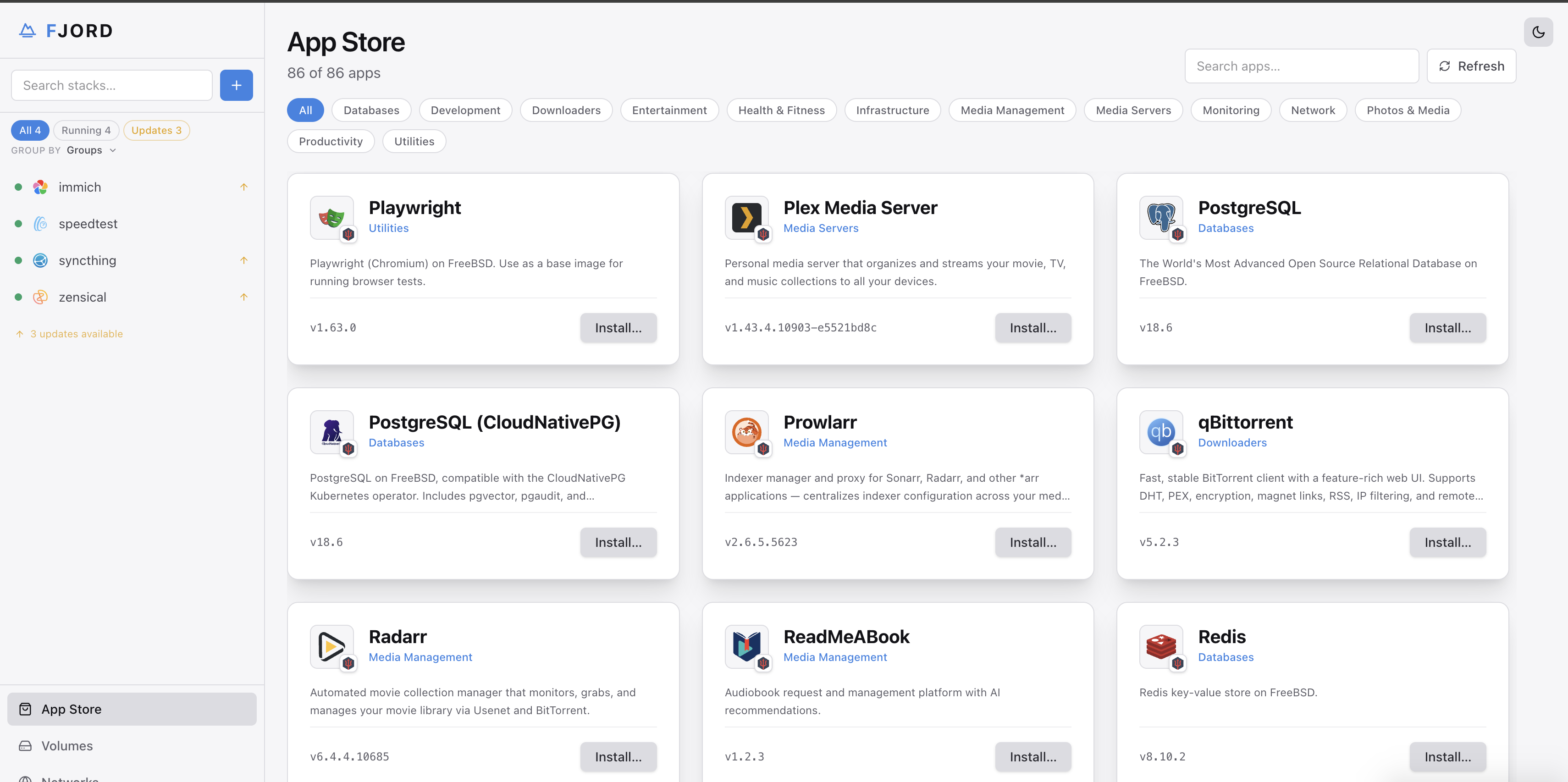
The App Store catalogs all container applications available across your configured repositories.
Architecture Filtering
Applications incompatible with your host CPU architecture (amd64 or arm64) are automatically hidden from the primary catalog view. A counter indicates how many applications are hidden, with a toggle to inspect them for reference.
The Deployment Wizard
Selecting an application opens the deployment wizard, which prompts only for required host bindings:
- Storage Mounts: Application data paths and persistent data folders. If you have defined Folder Sets (e.g.
MediaorDownloads), use the Add folder set… dropdown to auto-fill host paths with a single selection. - Port Allocation: Host-to-container port mappings. Optional auxiliary ports can be disabled or left blank to omit them from the generated specification.
- Release Channel: Select between
latest(upstream releases),pkg(FreeBSD Quarterly), orpkg-latest(FreeBSD Latest). - Engine Selection: Choose whether the stack should be provisioned via
podmanorappjail.
Before starting the container, fjord executes an automated pre-flight verification. If a published port is already held by another container, fjord names it; a port held by a host process is reported as in use. The stack configuration is safely written to disk without launching, enabling you to adjust the port binding or terminate the conflicting process.
Adopting what you started by hand
Adopt on the dashboard (the stacks overview, also the setup wizard's
"Already running" step) lists containers and jails on the host that no stack
owns.
fjord reads how each was started (podman create arguments, AppJail's
parameters) and writes a stack for it, so it gets the same page, update
checks and controls as everything installed from the store. A stack that
does not start afterwards is reported, not hidden.
2. Stack Lifecycle Management
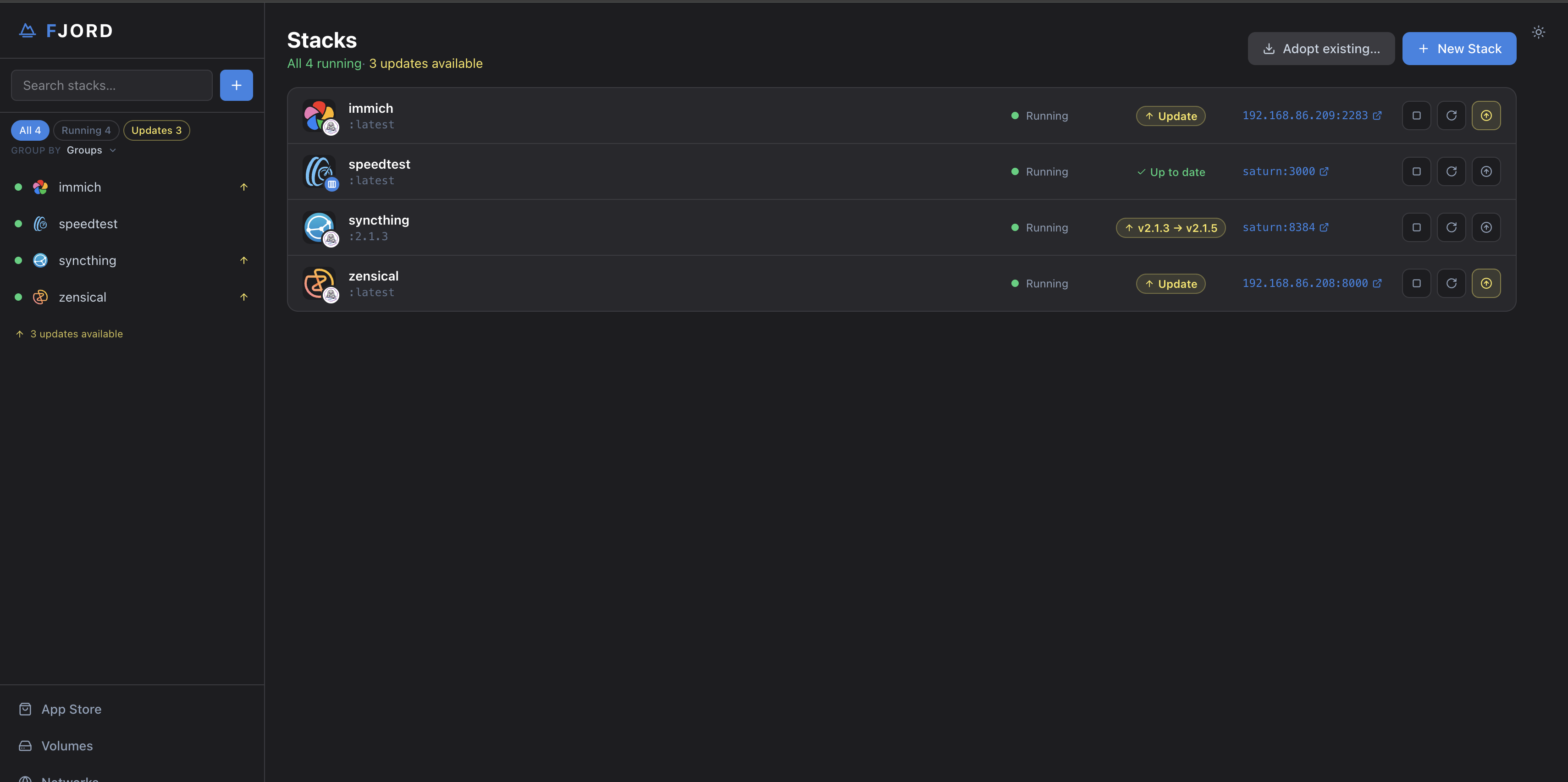
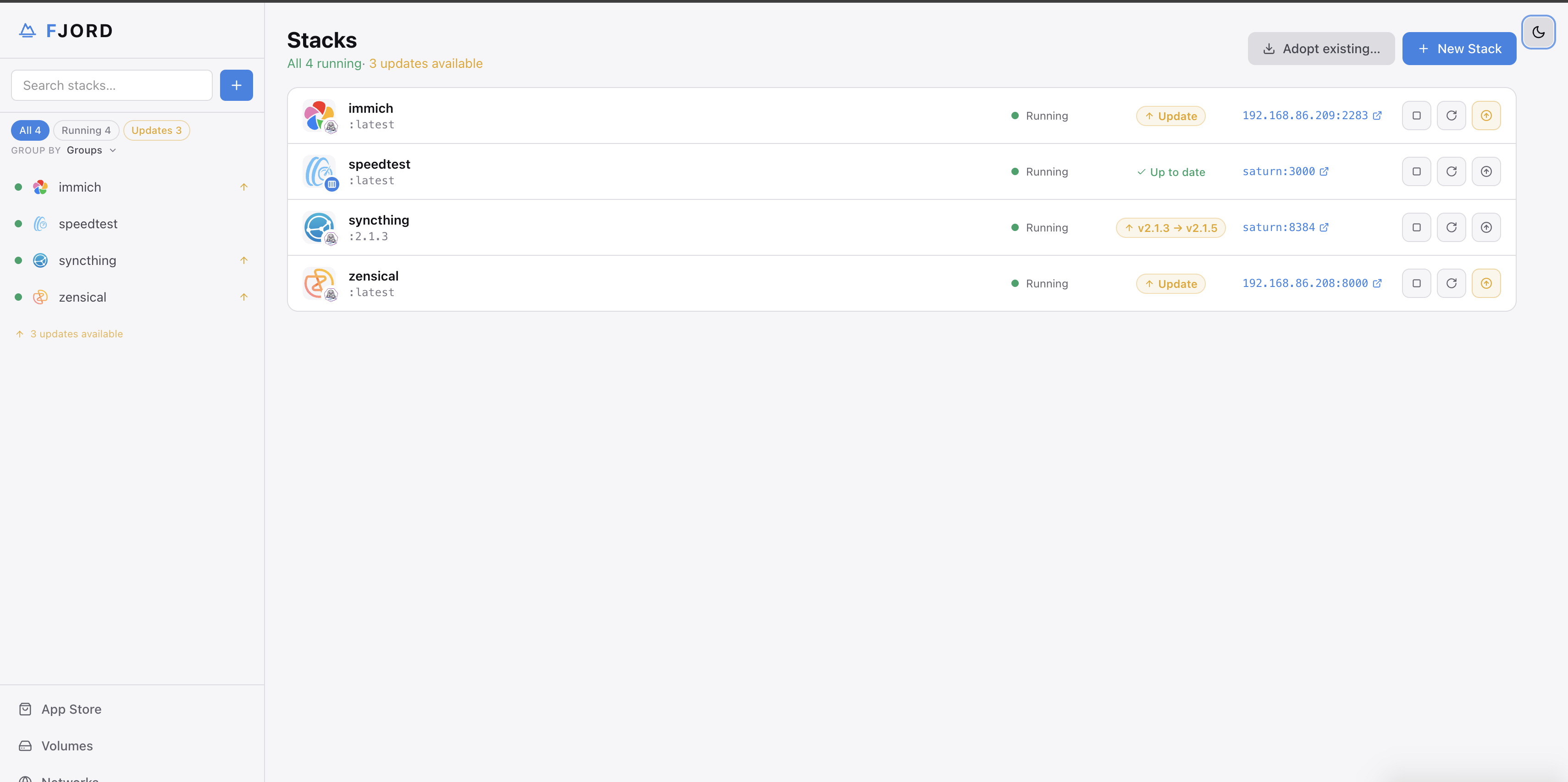
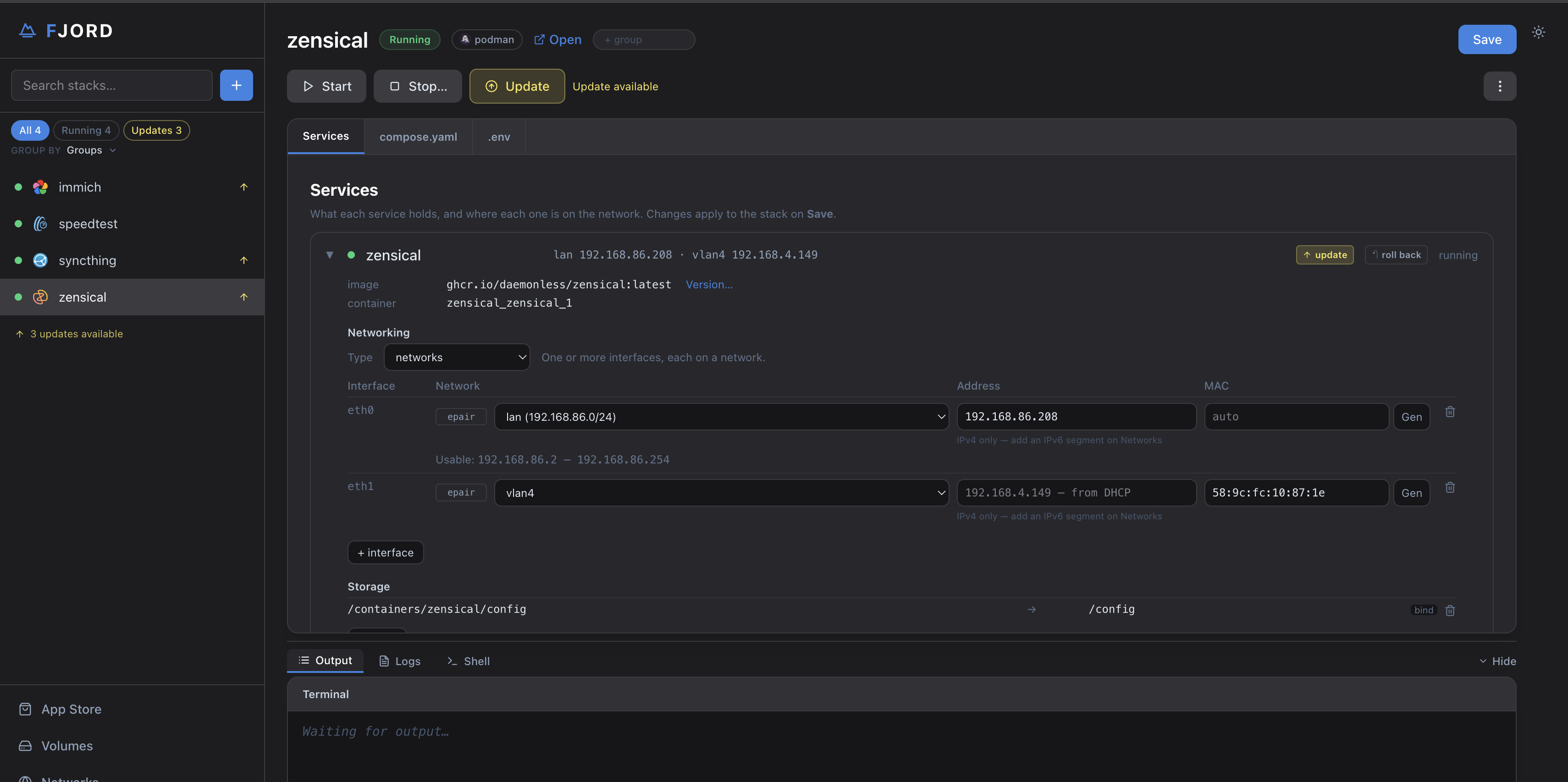
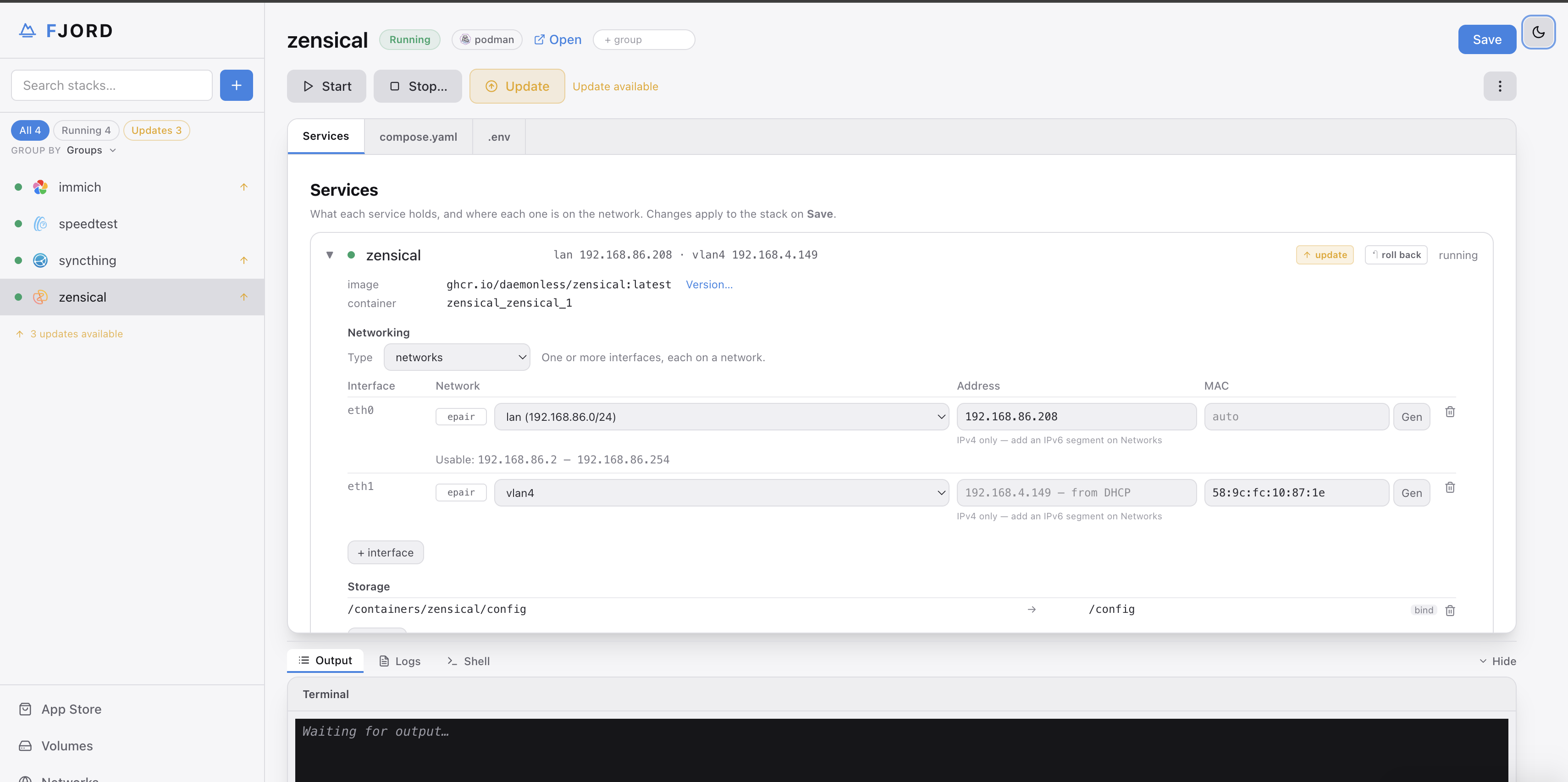
The Stacks view lists all active and stopped applications on the host, indicating their engine backend, running state, and update availability.
Lifecycle Actions
- Start / Stop / Restart: Dispatches orchestration commands to
podman-composeorappjail-director. - Update: says what each service would get and lets you pick; recreates and watches the result. See Updates.
- Change Version… / Pin: any published version, pinned to its digest if you want it to stay. See Updates.
- Open App: Opens the primary application web interface in a new browser tab, at its LAN address when it has one.
While a stack is installing or updating its buttons are greyed and say why; a second action is refused until it finishes. A failed action leaves a banner with the reason on the stack page until the next one succeeds.
Interactive Diagnostics Drawer
The bottom drawer provides three diagnostic views:
- Output: Live standard output and error streams from the underlying engine commands (
podman-compose up,appjail-director up, etc.). - Logs: Real-time container log streaming from the Libpod socket or the jail's log.
- Shell: An interactive web terminal connected directly into the running container or jail environment for immediate debugging.
3. Direct Specification Editing
fjord treats the files on disk as the ultimate ground truth. Every stack page has an integrated CodeMirror editor with syntax highlighting, one tab per file:
- Compose Specification: Direct access to
compose.yaml(Podman stacks) orappjail-director.yml+Makejail(AppJail stacks). - Environment Configuration: Key-value pairs stored in
.env. - Resources: A structured form view displaying configured mounts and ports. Modifying a volume mount or port here immediately updates the underlying configuration files.
When you click Apply, fjord saves the edited files to disk in /var/db/fjord/stacks/<id>/ and instructs the engine to reconcile running containers against the new configuration.
4. Volume & Storage Provisioning
The Volumes dashboard manages named storage volumes independently of specific stacks.
- Local: Named volumes on the engine's own storage.
- Remote:
nfs://server/exportandsmb://user@server/share(SMB on Linux hosts only) mapped as named container volumes. - Safety: Deleting a volume a stack still uses is refused unless you force it.
5. System Health & Diagnostics
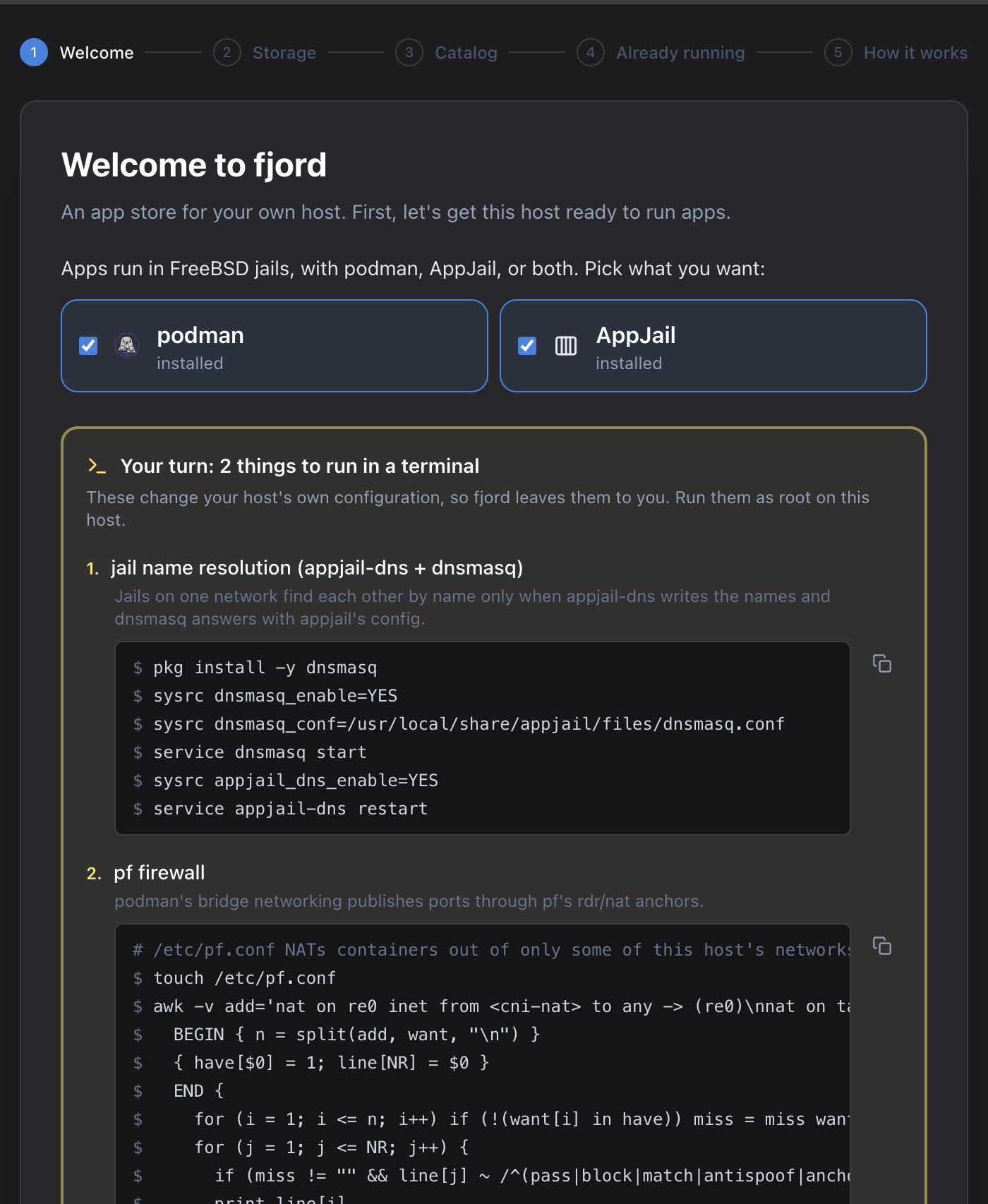
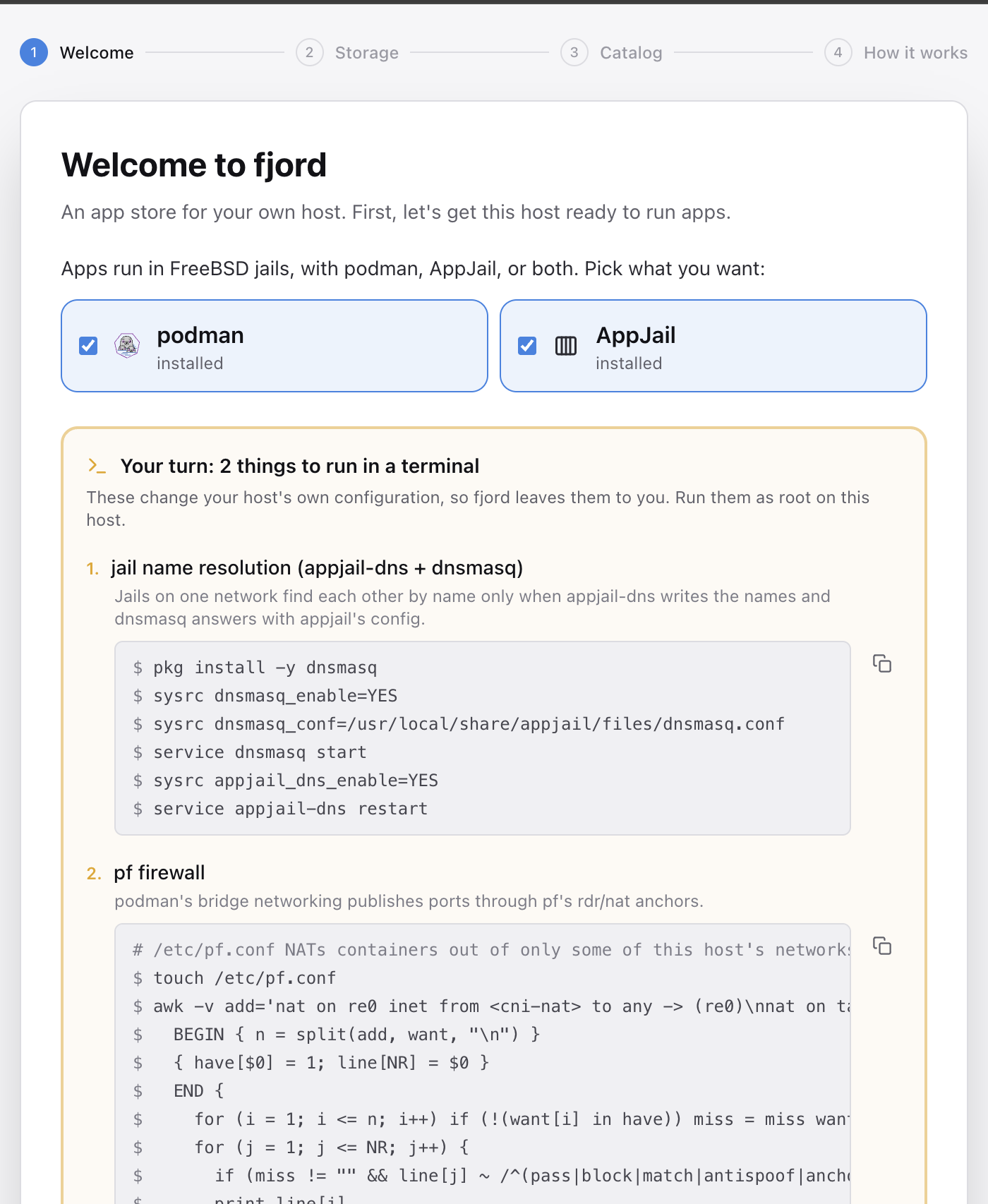
The Setup screen runs once on a fresh host and gets it ready one thing at a time: an Install button for what fjord can do itself (plugins, pf anchors, services), and a "Your turn" card with the exact commands for what changes the host's own configuration, which fjord leaves to you. The same checks live on the System page afterwards.
The System dashboard checks the underlying FreeBSD host on every visit and on Re-check:
Readiness Audits
Checks the Libpod API socket (podman.sock), Packet Filter anchors (cni-rdr and appjail-nat), container monitors (conmon), and runtime binaries (ocijail). Each check displays its operational status, technical significance, and a copyable shell fix command.
Storage Reclamation
Inspects the total disk space utilized by container layers, base images, and temporary build caches across Podman and AppJail. The Cleanup function safely prunes orphaned layers without impacting running stacks or base jail dependencies.
6. Settings & Customization
- App Data Directories: Configure the default filesystem locations or ZFS pools where application state directories are provisioned.
- Folder Sets: Define reusable groups of host directories (e.g. Media, Photos, Backups) that can be mapped into any application with one click.
- Catalogs: Add private or third-party catalog URLs. fjord merges all active catalogs into the App Store.
- Default Engine: Set the preferred container backend (
podmanorappjail) for new deployments.